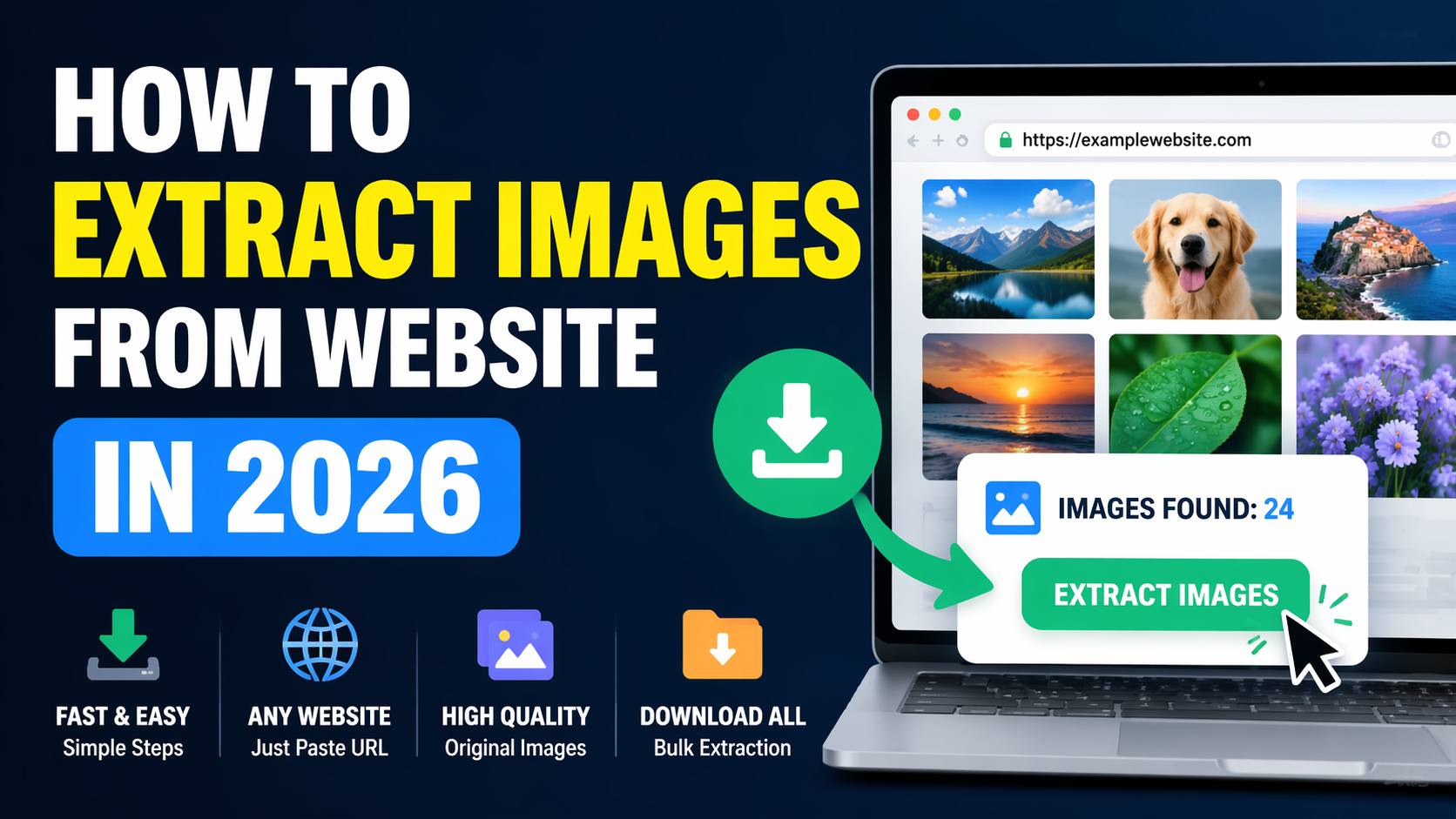
To extract images from website pages, you can use an online image extractor, your browser’s right-click option, Inspect Element, the Network panel, a browser extension, or a simple Python script. The best method depends on whether you need one visible picture, every image on a page, a CSS background, or the highest-resolution source file.
For the quickest option, paste the public webpage URL into our Online Image Extractor. It scans the available page content and places the detected images together, helping you preview and download the files you need without installing software or manually searching through HTML code.
Quick Answer
An image extractor finds image files connected to a public webpage and displays their source links or downloadable versions. You can extract images from a website with an online tool for convenience, Chrome DevTools for greater control, or Python for repeatable tasks. The result depends on how the page loads its images and whether those files are publicly accessible.
What Does It Mean to Extract Images From a Website?
Extracting images means locating the actual image files or image source URLs used by a webpage. These files may appear in standard HTML image tags, responsive image attributes, CSS backgrounds, scripts, galleries, sliders, or lazy-loading systems.
It is different from taking a screenshot. A screenshot captures the pixels currently shown on your screen. Image extraction attempts to locate the underlying JPG, PNG, WebP, GIF, SVG, AVIF, or other source file supplied by the website.
People commonly extract website images to:
- Save their own website assets before a redesign or migration.
- Collect authorized product images from a supplier portal.
- Audit image sizes, formats, filenames, and quality.
- Research visual layouts and design patterns.
- Recover images from an old page they control.
- Prepare approved images for reports or presentations.
- Identify broken, duplicated, or poorly optimized images.
How to Extract Images From Website Pages | 7 Practical Methods
No single method works perfectly for every webpage. Simple pages may allow direct saving, while modern websites may use responsive images, CSS backgrounds, lazy loading, JavaScript, content delivery networks, or temporary links.
Start with the easiest method and move to a more technical option only when necessary.
Method 1: Use the Online Image Extractor
An online extractor is the simplest choice when you want to find several images without opening developer tools. It is particularly useful for beginners, mobile users, content teams, and anyone who needs a quick overview of the images available on a public page.
Open the free Online Image Extractor and follow these steps:
- Open the public webpage containing the images you want to inspect.
- Copy the complete page URL from the browser address bar.
- Paste the URL into the image extractor input field.
- Start the extraction process.
- Review the images detected from the page.
- Select or open the image you need.
- Download the available file to your device.
The tool works in a browser, so you do not need to install a Chrome extension, desktop application, or coding library. It is a practical starting point when you want to extract images from website pages online.
However, an online tool can only process resources it is technically able and permitted to access. Images behind logins, private dashboards, anti-bot systems, temporary sessions, or complex client-side scripts may not appear.
Method 2: Right-Click and Save a Single Image
Direct saving remains the fastest option for a normal visible image. Right-click the picture and select Save image as, or open it in a new tab before saving it.
On a phone or tablet, press and hold the image until the browser displays its available actions. Depending on the browser and operating system, you may see an option to save, download, copy, or open the image.
This approach works well when:
- You need only one image.
- The image is displayed through a normal HTML element.
- The website has not disabled the context menu.
- The displayed version has sufficient resolution.
It may fail when the visible picture is a CSS background, part of a canvas, covered by another element, loaded through a script, or protected by a restricted interface.
Method 3: Find the Image With Inspect Element
Inspect Element helps you examine the HTML and CSS connected to a particular part of a webpage. It is useful when right-click saving does not reveal the correct file.
- Open the webpage in Chrome, Edge, Firefox, or another desktop browser.
- Right-click near the required image.
- Select Inspect or Inspect Element.
- Look for an
<img>,<picture>, or relevant container element. - Check attributes such as
src,srcset,data-src, ordata-lazy-src. - Open the image URL in a new browser tab.
- Save the file after confirming that it is the correct version.
A standard image element may look like this:
<img src="/images/product-small.webp" srcset="/images/product-small.webp 480w, /images/product-large.webp 1200w" alt="Example product">The src attribute provides a default source, while srcset may offer several versions for different screen widths or pixel densities. The largest listed file is not always the original, but it may provide better resolution than the displayed preview.
Simple URL rule:
For example, /images/photo.jpg on https://example.com becomes https://example.com/images/photo.jpg.
Method 4: Use Chrome’s Network Panel
The Network panel records resources requested while a webpage loads. This method can reveal images that do not appear clearly in the page’s initial HTML, including lazy-loaded files and resources requested after user interaction.
- Open the webpage in Chrome.
- Press F12, or use Ctrl + Shift + I on Windows.
- Open the Network tab.
- Select the Img resource filter.
- Refresh the page while the Network panel remains open.
- Scroll through the page or open the required slider or gallery.
- Select an image request to review its preview, dimensions, type, and URL.
- Open the request URL in a new tab and save it when permitted.
Chrome DevTools officially provides resource-type filters, including the Img filter, to narrow the Network panel to image requests.
This is one of the strongest manual methods for extracting images from a webpage because it shows what the browser actually requested. However, it may also display icons, logos, tracking pixels, thumbnails, and decorative files, so you must identify the relevant item carefully.
Method 5: Extract a CSS Background Image
Some hero banners, cards, buttons, and section backgrounds are not regular image elements. Developers may apply them through the CSS background-image property instead.
To extract a background image:
- Right-click the section containing the visual and select Inspect.
- Select the correct HTML container.
- Check the Styles or Computed panel.
- Search for
backgroundorbackground-image. - Locate the URL inside the CSS declaration.
- Open that URL in a new tab.
.hero-section { background-image: url("/assets/hero-background.webp"); }CSS can apply one or more background images to an element, and the referenced file may use an absolute, relative, data, or blob URL.
A data URL is embedded directly within the stylesheet rather than stored as a normal separate file. A blob URL may be temporary and tied to the current browser session, so opening or reusing it outside that session may not work.
Method 6: Use a Chrome or Firefox Image Downloader Extension
A browser extension can scan the active webpage and display many detected image files together. Extensions are useful when you frequently need to compare dimensions, filter small icons, choose formats, or download multiple authorized assets.
Before installing an extension, review:
- The permissions it requests.
- Its developer and update history.
- Recent user reviews.
- Whether it sends browsing data to an external server.
- Whether it can filter by dimensions, type, or file size.
- Whether bulk downloads preserve understandable filenames.
A browser extension may be convenient, but it receives access to parts of your browsing activity. Avoid unknown extensions that request permissions unrelated to image downloading.
Method 7: Extract Image URLs With Python
Python is useful when you own the website, have permission to process it, or need to audit several authorized pages. The following example collects image URLs from standard and lazy-loading attributes without automatically downloading the files.
import requests from bs4 import BeautifulSoup from urllib.parse import urljoin page_url = "https://example.com" headers = {"User-Agent": "Mozilla/5.0"} response = requests.get( page_url, headers=headers, timeout=15 ) response.raise_for_status() soup = BeautifulSoup(response.text, "html.parser") image_urls = set() for image in soup.find_all("img"): for attribute in ("src", "data-src", "data-lazy-src"): value = image.get(attribute) if value: image_urls.add(urljoin(page_url, value)) srcset = image.get("srcset") if srcset: for candidate in srcset.split(","): image_path = candidate.strip().split(" ")[0] image_urls.add(urljoin(page_url, image_path)) for image_url in sorted(image_urls): print(image_url)This script:
- Requests the page’s HTML.
- Parses its image elements.
- Checks common standard and lazy-loading attributes.
- Converts relative paths into complete URLs.
- Prints unique image links.
Python’s URL libraries support opening, parsing, and combining URLs, while urllib.robotparser can check rules published in a site’s robots.txt file.
This basic approach reads server-delivered HTML. It may not detect images created only after JavaScript executes. For an authorized JavaScript-rendered site, a developer may need browser automation, an official API, or direct access to the website’s content management system.
How to Extract All Images From a Website Page
When you need every relevant image from one URL, use an online image extractor, a trusted browser extension, or the Network panel. These options reduce the need to save files individually.
For the easiest workflow:
- Copy the full public page URL.
- Open the Online Image Extractor.
- Paste the page address into the available field.
- Run the extraction.
- Review the returned images rather than downloading everything blindly.
- Choose the files that match your intended and permitted use.
“All images” can include more than the pictures visible in the article or product area. A page may also contain:
- Site logos and favicons.
- Navigation icons.
- Author avatars.
- Advertisement graphics.
- Tracking pixels.
- Hidden responsive variants.
- Placeholder images.
- Preloaded gallery slides.
Filtering by dimensions, filename, format, or file size can help remove irrelevant assets.
How to Extract High-Quality Images From a Website
The image shown on screen is not always the largest available version. Responsive websites often send different files according to viewport width, screen density, connection settings, and layout position.
Quality principle:
To look for a better-quality image:
- Inspect the
srcsetattribute for larger width values. - Check the Network panel after opening a full-screen gallery.
- Open the image in a new tab and inspect its natural dimensions.
- Look for thumbnail parameters such as width, height, crop, or quality values.
- Use the website’s official download button when one is available.
- Check whether the publisher provides a media kit or original asset library.
Do not assume that deleting URL parameters will always reveal an original file. Some image delivery services generate URLs dynamically, sign requests, prevent unauthorized transformations, or return an error when parameters are changed.
Why Are Some Website Images Missing From an Extractor?
An image extractor may not find every picture visible during normal browsing. Common reasons include:
Lazy Loading
The webpage may request an image only after you scroll near it. Open the page, scroll through the complete content, and then inspect the Network panel.
JavaScript Rendering
Some websites build galleries or product sections after the initial HTML has loaded. A basic server-side extractor may receive incomplete markup.
CSS Backgrounds
The picture may be applied through a stylesheet instead of an HTML image tag. Inspect the element’s background properties.
Authentication or Private Content
Images inside accounts, dashboards, paid areas, or private systems may require an active authenticated session. Do not attempt to defeat access controls.
Temporary or Signed URLs
Some image links expire or work only with specific request headers, cookies, tokens, or sessions.
Canvas-Rendered Visuals
A chart, game, editor, or interactive application may draw pixels onto an HTML canvas rather than load one ordinary image file.
Blocked Automated Requests
A website may limit automated scanning, remote requests, hotlinking, or unfamiliar user agents. Use the site’s official download feature or request permission instead of attempting to bypass its restrictions.
Which Image Extraction Method Should You Choose?
| Method | Best For | Skill Level | Main Limitation |
|---|---|---|---|
| Online image extractor | Quick online extraction | Beginner | May miss private or script-rendered assets |
| Right-click save | One visible image | Beginner | May save only a preview |
| Inspect Element | Finding source URLs and backgrounds | Intermediate | Requires manual inspection |
| Network panel | Lazy-loaded and dynamic images | Intermediate | Can show many irrelevant requests |
| Browser extension | Frequent bulk collection | Beginner | Privacy and permission concerns |
| Python | Authorized repeatable audits | Advanced | Static scripts may miss JavaScript content |
Who Can Use an Image Extractor?
An image extraction tool can support several legitimate workflows:
- Website owners: Recover, review, or organize images used across their pages.
- SEO professionals: Audit formats, dimensions, filenames, and duplicate assets.
- Developers: Test image delivery and inspect responsive or lazy-loaded resources.
- Designers: Gather approved brand assets or study visual patterns for inspiration.
- Content teams: Locate authorized images required for updates and migrations.
- Students and researchers: Save permitted material for citation, analysis, or educational work.
- E-commerce teams: Retrieve supplier-approved product images from authorized sources.
Common Mistakes When Extracting Images From Websites
Downloading the Thumbnail Instead of the Main Image
A small image may be a compressed preview. Check its natural dimensions, responsive sources, or full gallery view before saving it.
Assuming Every Image Is Free to Reuse
Public visibility is not the same as an open licence. Identify the owner and confirm the permitted use before publishing the image elsewhere.
Using Screenshots When a Source File Is Available
Screenshots can reduce quality, include unwanted interface elements, and remove useful metadata. Look for the actual source file first.
Downloading Every Page Asset Without Filtering
Bulk extraction may return icons, placeholders, tracking pixels, and duplicate responsive versions. Review filenames and dimensions before keeping files.
Ignoring Modern Image Formats
Websites increasingly use formats such as WebP, SVG, or AVIF. Confirm that your editing software or publishing platform supports the downloaded format.
Trying to Circumvent Private Access
An extractor should be used with public pages or content you are authorized to access. Do not defeat authentication, paywalls, technical restrictions, or security controls.
Helpful Tips for Better Image Extraction Results
- Use the complete page URL, including
https://. - Open galleries, accordions, sliders, or product variants before checking Network requests.
- Scroll through lazy-loaded pages so more images are requested.
- Compare the dimensions of similar files before choosing one.
- Prefer official download links when the website provides them.
- Keep the original filename when it provides useful context.
- Rename generic files carefully to avoid losing track of their source.
- Record the page URL, owner, licence, and download date for professional projects.
- Use an online tool for occasional tasks and code only when repeatable automation is justified.
- Scan downloaded files with your normal device security tools.
Limitations and Responsible Use
No image extractor can guarantee access to every visual connected to a website. Results depend on the page structure, public accessibility, JavaScript behaviour, server restrictions, image hosting method, selected browser, and the URL supplied by the user.
The extracted result may be:
- A thumbnail rather than an original.
- A compressed responsive version.
- A temporary URL.
- A duplicate of another image.
- A placeholder loaded before the main file.
- An image unavailable outside the original session.
Use extraction tools for pages you own, content you are authorized to process, openly licensed material, public-domain resources, or legitimate research and reference work. When another person owns the image, seek permission or follow the stated licence. The U.S. Copyright Office notes that permission can be requested directly from the copyright owner, while exceptions such as fair use depend on context rather than a universal rule.
Conclusion
The easiest way to extract images from website pages is to begin with an online extractor and move to Inspect Element, the Network panel, an extension, or Python when the page requires more control. Right-click saving works for one ordinary picture, while developer tools are better for backgrounds, responsive sources, and lazy-loaded files.
Use the Online Image Extractor when you want a quick browser-based method without installing software. Always review the returned files, verify their quality, and confirm that you have permission for your intended use.
Frequently Asked Questions
How do I extract images from a website online?
Copy the public webpage URL and paste it into an online image extractor. Run the tool, review the detected images, and download the files you are permitted to use. This method does not normally require coding or a browser extension.
Can I extract all images from a website for free?
You can use free online tools, browser developer tools, or suitable extensions to detect multiple images from a public page. Results may include logos, icons, thumbnails, placeholders, and duplicate sizes, so review the list carefully.
How do I extract a high-resolution image from a website?
Inspect the image’s srcset, open the full gallery view, or use the Network panel to locate larger responsive files. The website may not provide the original-resolution image publicly, so the largest available source can still be compressed.
How can I extract a background image from a website?
Inspect the section containing the background and look for the CSS background-image property. Open the URL shown inside the CSS declaration in a new tab when it is a normal accessible file.
How do I download all images from a URL in Chrome?
Use an online image extractor, a trusted image downloader extension, or Chrome DevTools. In DevTools, open the Network panel, select the Img filter, refresh the page, and interact with the page to reveal lazy-loaded files.
Why does an image extractor miss some website images?
The missing images may be loaded through JavaScript, displayed as CSS backgrounds, protected by authentication, attached to temporary URLs, or requested only after scrolling or opening a gallery. Try the Network panel or the website’s official download feature.
Is it legal to extract images from any website?
Technical access does not automatically provide reuse rights. You should check copyright ownership, licence terms, website conditions, and permissions before republishing or commercially using an extracted image.
Useful Image & Online Media Tools
If you are learning how to extract images from a website, these related tools can help you save thumbnails, pull web images, manage copied links, and handle online media tasks faster.
- Online Image Extractor – quickly extract images from web pages for media, research, and content tasks.
- YouTube Thumbnail Downloader – save YouTube video thumbnails for design, research, or content planning.
- WhatsApp DP Viewer/Downloader – useful for checking and viewing WhatsApp profile pictures online.
- Free Online Clipboard – copy, save, and manage extracted image links or text without login.