Quick Answer
A YouTube Tags Generator creates tag ideas based on your video topic, title, description, and keywords.
It helps you generate relevant YouTube tags faster, so your video metadata stays clear and focused.
Tags do not guarantee views or rankings, but they can support topic clarity and help cover useful keyword variations.
Use the generated tags as a starting point, then remove anything irrelevant before publishing.
What Is This YouTube Tags Generator?
This YouTube Tags Generator is an online tool that helps you create keyword-style tags for YouTube videos. These tags describe your video topic, niche, format, audience intent, and related search phrases.
You can use it as a youtube tag generator, tag generator for YouTube, YouTube video tags generator, YouTube Shorts tags generator, YouTube SEO tags generator, or simple free YouTube tags generator tool.
The tool is useful for creators who want fast tag ideas without manually brainstorming every keyword variation. It can help with tutorials, gaming videos, vlogs, educational content, product reviews, Shorts, music videos, podcasts, and business videos.
How This YouTube Tag Generator Works
The tool uses the information you enter to create tag ideas that match your video topic. A clear title and accurate primary keyword help the tool understand the main subject of your video.
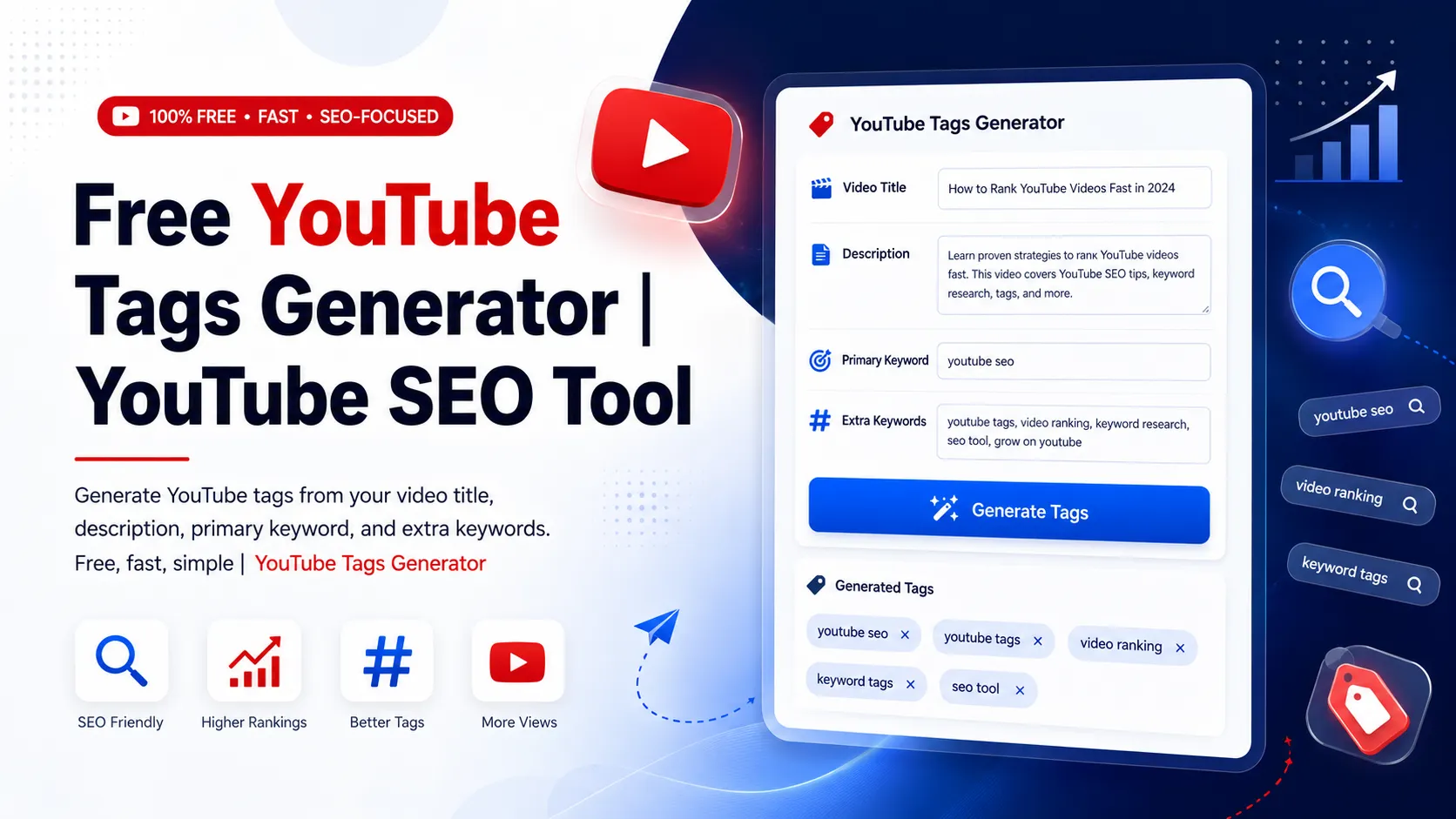
The old tool reference shows the key fields: Video Title, Video Description, Primary Keyword, Additional Keywords, Number of Tags, and a Generate Tags button.
For example, if your video title is “Beginner Home Workout Without Equipment,” your primary keyword may be “home workout for beginners.” Additional keywords could include “no equipment workout, fitness tips, beginner exercise.” The generator can then create a more focused tag list around that topic.
How to Use the YouTube Tags Generator
1. Enter Your Video Title
Start by typing your YouTube video title into the title field. The title gives the tool the strongest clue about your video’s topic.
Use a clear title instead of a vague one. For example, “How to Edit YouTube Shorts on Phone” is better than “My Editing Tips.”
2. Add a Video Description
Use the description field to explain what your video covers. This is optional, but it can help the generator create better YouTube video tags.
A short summary with the topic, audience, tools, and content angle is usually enough.
3. Enter the Primary Keyword
Add the main keyword you want the video to focus on. Examples include “YouTube SEO tips,” “travel vlog,” “gaming settings,” “beginner makeup tutorial,” or “AI tools for creators.”
4. Add Extra Keywords
Use the additional keywords field for related terms. Separate them with commas, such as “youtube tags, video SEO, grow YouTube channel, YouTube ranking tips.”
5. Choose the Number of Tags
Use the number of tags option or slider to choose how many tags you want. Generate a larger list when brainstorming, then keep only the best and most relevant tags.
6. Click Generate Tags
Click the Generate Tags button to create tag ideas. Review the output before adding tags to your YouTube video settings.
7. Copy and Edit the Tags
Copy the tags you want to use, but do not paste everything blindly. Remove repeated, broad, misleading, or unrelated tags before publishing.
Key Features of This Free YouTube Tag Generator
Video Title Input
The title field helps the generator understand your main topic. This improves the chance of getting tags that match the video instead of random broad keywords.
Optional Description Field
The description field gives extra context. This is useful when your title is short or when the video covers multiple subtopics.
Primary Keyword Field
The primary keyword field helps you guide the tool toward your main search phrase. This is useful for YouTube SEO tags and topic-focused metadata.
Additional Keywords Field
The additional keywords field lets you include supporting terms, related topics, audience types, and niche phrases. This can improve the quality of generated tag ideas.
Tag Quantity Control
The number of tags option lets you choose a short or longer list. This helps whether you want a quick set of tags or more ideas to filter manually.
Fast Tag Generation
The Generate Tags button creates tag ideas quickly, saving time for creators, marketers, Shorts editors, and channel managers.
Why Use a YouTube Tags Generator?
A YouTube tags generator saves time when you need metadata ideas for a video. Instead of writing every tag manually, you can enter the topic and generate related tags in seconds.
It also helps you think of keyword variations. For example, a video about “YouTube tags generator” may also fit tags like “youtube tag generator,” “tag generator for youtube,” “youtube video tags generator,” and “youtube seo tags.”
The tool is especially useful when you publish often and need a consistent workflow. You can generate tags, review them, remove weak options, and keep a focused list that matches the video.
Practical Example
Suppose you are uploading a video about YouTube SEO for beginners. You can use these inputs:
- Video Title: YouTube SEO Tips for Beginners
- Description: A beginner guide to improving titles, descriptions, thumbnails, tags, and video metadata.
- Primary Keyword: YouTube SEO tips
- Additional Keywords: YouTube tags, video SEO, grow YouTube channel, YouTube ranking tips
- Number of Tags: 20
The tool may generate tags such as “youtube seo,” “youtube seo tips,” “video seo,” “youtube tags,” “youtube ranking tips,” “grow youtube channel,” and “youtube metadata.”
After generating tags, keep the ones that match your actual video and delete anything too broad or unrelated.
What Makes a Good YouTube Tag?
A good YouTube tag is relevant, specific, and closely connected to the video content. It should describe the real topic of the video, not just a popular trend.
Strong tags often include your main keyword, close variations, niche terms, content format, audience type, and common phrases people may use when searching for the topic.
For example, a cooking Short about a quick pasta recipe could use tags like “quick pasta recipe,” “easy pasta,” “food shorts,” “quick dinner ideas,” and “pasta recipe for beginners.”
Best Types of Tags to Generate for YouTube
Primary Keyword Tags
These match the main topic of the video. If your video is about a YouTube Tags Generator, that phrase and close variations should be included.
Long-Tail Tags
Long-tail tags are more specific phrases, such as “how to generate YouTube tags” or “free YouTube tags generator tool.” These can help describe focused search intent.
Topic Variation Tags
These include different ways users may search for the same topic, such as “youtube tag generator,” “tags generator for YouTube,” and “YouTube video tags generator.”
Niche Tags
Niche tags describe the category of the content, such as gaming, education, beauty, travel, finance, tech, music, fitness, or cooking.
Format Tags
Format tags describe the type of video, such as tutorial, review, vlog, shorts, guide, reaction, comparison, or walkthrough.
YouTube Tags vs YouTube Hashtags
YouTube tags and YouTube hashtags are different. Tags are added in the video details area to help describe the video behind the scenes.
Hashtags usually appear in the title or description with the # symbol. They are visible to viewers and can be clicked.
This tool is mainly a YouTube video tags generator, but some generated keyword ideas may also help you create relevant hashtags for your description.
Can This Tool Generate Tags for YouTube Shorts?
Yes. You can use this as a YouTube Shorts tags generator by entering your Shorts title, short description, primary keyword, and related keywords.
For Shorts, keep tags tightly focused on the exact action, niche, or topic shown in the video. Avoid adding unrelated viral tags just because they are popular.
For example, a Short about a simple phone photography trick could use tags like “phone photography,” “mobile photography tips,” “shorts photography,” and “camera tips.”
Who Can Use This Tool?
This YouTube Tags Generator is useful for YouTubers, Shorts creators, vloggers, gamers, educators, marketers, businesses, podcasters, musicians, product reviewers, coaches, and content agencies.
Beginners can use it to avoid starting from a blank page. Experienced creators can use it to speed up their upload workflow and create a more consistent tagging process.
Agencies and channel managers can also use it when preparing metadata for multiple videos across different topics or clients.
Common Mistakes to Avoid
Using Misleading Tags
Do not add tags that do not match the video. Misleading metadata can create a poor viewer experience and may violate platform rules.
Relying Only on Tags
Tags are only one part of YouTube metadata. Your title, thumbnail, description, video quality, retention, and audience satisfaction are also important.
Repeating the Same Tag Too Many Times
Do not repeat the same keyword in many slightly awkward forms. Use natural variations only when they make sense.
Adding Too Many Broad Tags
Tags like “viral,” “trending,” or “funny” are weak if they do not clearly describe the video. Specific tags are usually more useful.
Ignoring the Actual Video Content
Generated tags should always match what viewers will actually see. If the tag does not describe the video, remove it.
Helpful Tips for Better YouTube Tags
- Use your main keyword as one of the first tag ideas.
- Add close variations that people may search for.
- Include niche terms that describe your video category.
- Use long-tail tags for specific topics and tutorials.
- Remove tags that are unrelated, misleading, or too generic.
- Keep your tags aligned with your title and description.
- Review the generated list before copying it into YouTube Studio.
Limitations
This YouTube Tags Generator gives tag ideas, but it cannot guarantee views, rankings, subscribers, or viral performance.
Video performance depends on many factors, including topic demand, video quality, audience retention, title, thumbnail, description, publishing consistency, and viewer satisfaction.
The quality of generated tags depends on your input. If your title, description, and keywords are unclear, the generated tags may also be broad or less useful.
Always review tags manually and use only those that accurately describe your video.
Conclusion
This YouTube Tags Generator helps you create relevant tags from your video title, description, primary keyword, and additional keywords. It is a fast way to build a cleaner tag list and support your YouTube SEO workflow.
Use the tool to generate YouTube tags quickly, then choose the most accurate tags for your actual content. A focused and honest tag list is better than a long list of unrelated keywords.
FAQs
What is a YouTube Tags Generator?
A YouTube Tags Generator is an online tool that creates tag ideas for YouTube videos based on your title, description, primary keyword, and related keywords.
How do I generate YouTube tags?
Enter your video title, add an optional description, type your primary keyword, add related keywords, choose the number of tags, and click Generate Tags.
Is this YouTube tag generator free?
Yes. This free YouTube tag generator helps you create tag ideas without paid software or advanced SEO experience.
Can YouTube tags increase views?
Tags can support topic clarity, but they do not guarantee views. Titles, thumbnails, descriptions, watch time, audience retention, and video quality also matter.
Can I use this tool for YouTube Shorts tags?
Yes. Enter your Shorts topic, title, primary keyword, and related terms to generate tags that match your short video content.
What is the difference between YouTube tags and hashtags?
Tags are added in the video details area, while hashtags usually appear in the title or description with a # symbol. This tool focuses on video tags.
How many YouTube tags should I use?
Use enough tags to describe your video clearly, but avoid stuffing. A smaller list of relevant tags is usually better than a long list of weak or repeated tags.
Useful YouTube & Content Creation Tools
If you are using the YouTube Tags Generator, these related tools can help with thumbnails, content formatting, image extraction, and creator workflow tasks.
- YouTube Thumbnail Downloader – quickly save YouTube video thumbnails for research or content creation.
- Online Image Extractor – extract images from web pages for media and content tasks.
- Fancy Text Generator – create stylish text for captions, titles, and social posts.
- Title Case Converter – format YouTube titles and headings with clean capitalization.