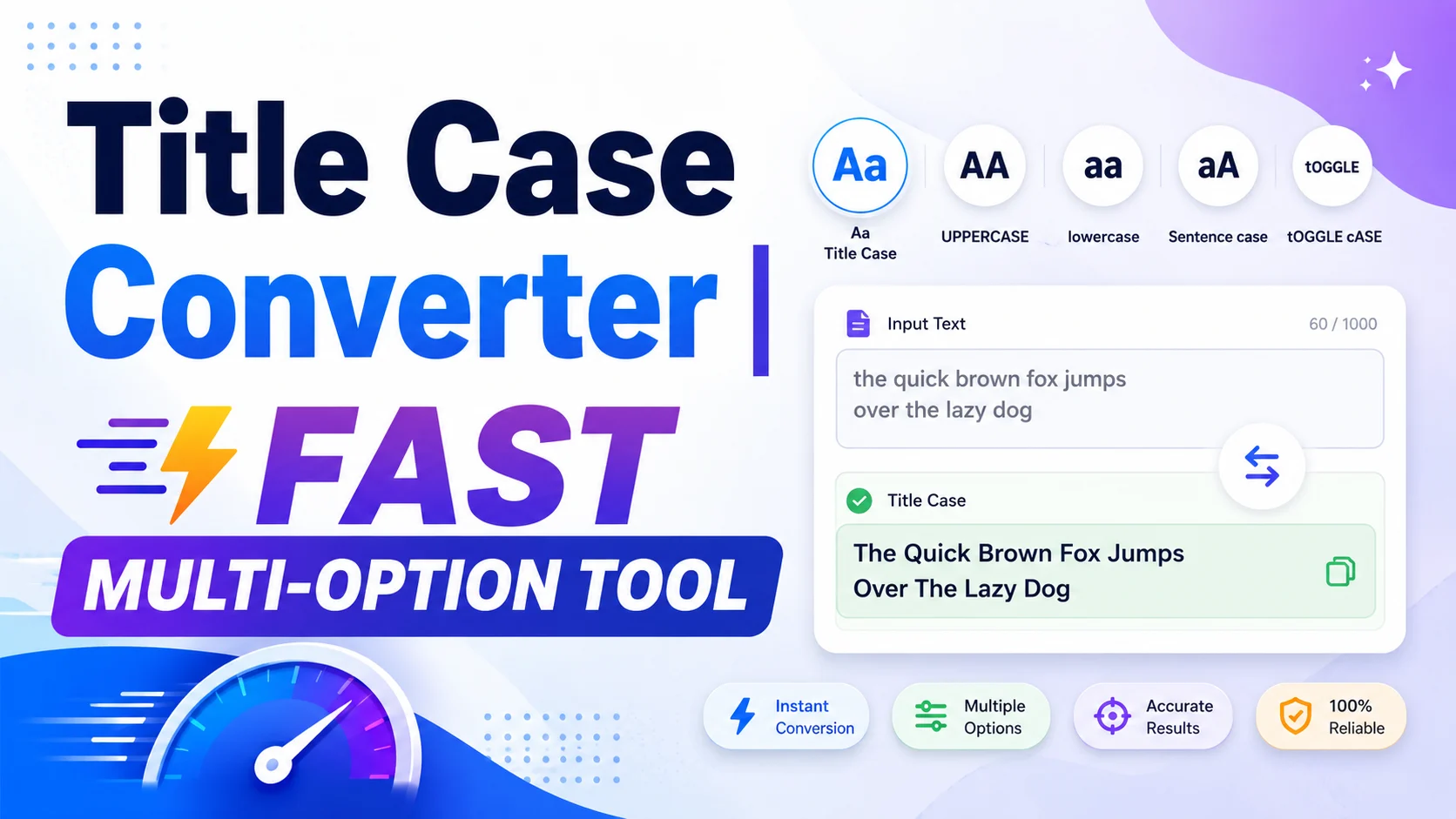
Writing a title is easy, but formatting it correctly can take extra time. This Title Case Converter helps you convert titles, headlines, article names, subject lines, and short text into clean title case or other capitalization styles without editing every word by hand.
Enter your text, choose a conversion style, adjust smart options such as acronym handling and small-word formatting, then copy the converted result. It is useful for writers, editors, bloggers, students, marketers, and anyone who needs consistent headline capitalization.
Quick Answer
The Title Case Converter changes text into title case and other capitalization formats. It can help convert titles and headlines into title case, sentence case, uppercase, lowercase, or capitalized words based on the selected style.
The visible tool includes input and output boxes, character counts, a conversion style dropdown, instant conversion options, acronym handling, copy, clear, and reset controls. It saves time and helps keep title formatting consistent across content, documents, and web pages.
What Is This Title Case Converter?
This Title Case Converter is an online text tool that changes the capitalization of titles, headings, headlines, and short pieces of text. Instead of manually checking which words should be capitalized, you can paste your text and let the tool format it based on the selected conversion style.
The visible interface includes an “Enter your text” box, a “Converted result” box, character counts for both areas, a Conversion style dropdown, and several formatting options. The screenshot shows “Smart Title Case” selected, along with options such as Convert instantly, Keep acronyms uppercase, Lowercase small words, Enable multi-line input, and Use straight quotes.
The page description also says the tool can convert titles and headlines into title case, sentence case, uppercase, lowercase, or capitalized words. This makes it useful for many text formatting tasks, from blog titles to email subjects and document headings.
This tool is not only for SEO titles. It can also help with editorial workflows, academic headings, social media headlines, product titles, page titles, and any situation where capitalization needs to look clean and consistent.
How Does This Tool Work?
The tool reads the text you enter, applies the selected conversion style, and places the formatted version in the converted result box. The exact output depends on the style you choose and the options you enable.
The basic logic is:
Input text + conversion style + selected options = formatted title output
For title case, the tool capitalizes important words while handling smaller words based on the selected rules. Small words often include words such as “a,” “an,” “the,” “and,” “or,” “but,” “to,” “of,” “in,” and “for.” The visible “Lowercase small words” option helps keep these words lowercase when appropriate.
The “Keep acronyms uppercase” option helps preserve acronyms such as SEO, HTML, URL, USA, API, or NASA. This is important because a normal capitalization process might turn acronyms into awkward forms such as “Seo” or “Html.”
The “Convert instantly” option means the result can update as you type or edit text, while the Convert Text button lets users manually run the conversion when needed.
How to Use This Title Case Converter
- Enter your text: Type or paste your title, headline, sentence, or phrase into the “Enter your text” box.
- Check the character count: The tool shows a character count above the input box, which helps you track the length of your text.
- Choose a conversion style: Use the Conversion style dropdown. The visible selected option is “Smart Title Case.” The page description also mentions title case, sentence case, uppercase, lowercase, and capitalized words.
- Use instant conversion if preferred: Keep “Convert instantly” checked if you want the result to update automatically as you type.
- Keep acronyms uppercase: Leave this option checked when your title includes acronyms such as SEO, HTML, API, URL, or USA.
- Lowercase small words: Keep this option checked when you want small connecting words to stay lowercase in title case where appropriate.
- Enable multi-line input if needed: Use this option when you want to convert more than one title or line of text.
- Use straight quotes if needed: Select this option if you want quotes converted or kept in straight quote style instead of curly quote style.
- Click Convert Text: Use the Convert Text button to run the conversion manually if instant conversion is not enough or is turned off.
- Copy the result: Use the Copy Result button to copy the converted text.
- Clear or reset: Use Clear to remove the current text, or Reset to return the tool to its default settings.
Key Features
Smart Title Case Conversion
The visible Conversion style dropdown shows “Smart Title Case.” This helps format titles in a more natural way by capitalizing important words and handling smaller words more carefully than a basic uppercase tool.
Multiple Capitalization Styles
The page description says the tool can convert text into title case, sentence case, uppercase, lowercase, or capitalized words. This makes it useful for different writing tasks, not just headline formatting.
Side-by-Side Input and Output
The tool shows the original text and converted result in separate boxes. This makes it easy to compare the before and after versions before copying the final result.
Character Counts
Both the input and output areas show character counts. This is helpful for SEO titles, social captions, email subject lines, metadata, ads, and platforms where text length matters.
Convert Instantly Option
The “Convert instantly” checkbox helps users see the result while typing. This can make the workflow faster because you do not need to press the convert button after every small edit.
Keep Acronyms Uppercase
The “Keep acronyms uppercase” option is useful for modern content that includes technical terms, brand abbreviations, and common acronyms. It helps keep terms such as SEO, HTML, URL, API, and AI readable and correct.
Lowercase Small Words
The “Lowercase small words” option helps create cleaner title case by avoiding unnecessary capitalization of small connector words. This is useful for headlines, article titles, and page titles.
Multi-Line Input
The “Enable multi-line input” option can help when you want to format more than one line of text. This is useful for editors, content teams, and users working with multiple headline ideas.
Straight Quotes Option
The “Use straight quotes” option helps users control quote formatting. This can be helpful when preparing text for systems that prefer straight quotation marks.
Copy, Clear, and Reset Controls
The Copy Result button helps move the converted text quickly into another tool, document, CMS, or editor. Clear removes current text, while Reset restores the tool to its starting state.
Why Use This Tool?
A title case tool saves time by formatting text automatically. Instead of checking every word in a headline, you can paste your text, select the style, and copy the result.
It also improves consistency. If multiple people write titles for the same website, brand, school project, or documentation set, capitalization can become inconsistent. A converter helps keep the formatting more uniform.
For SEO and content writing, clean title formatting improves readability. A properly formatted title looks more polished in blog posts, landing pages, article headings, social previews, and editorial calendars.
For editors and students, the tool reduces repetitive manual work. It can quickly change all caps to title case, convert lowercase text into headline style, or turn a messy title into a cleaner version.
Practical Example
Suppose you enter this text:
how to convert a title for seo and html pages
With Smart Title Case, acronym preservation, and lowercase small words enabled, the output may look like:
How to Convert a Title for SEO and HTML Pages
This result keeps important words capitalized, keeps acronyms uppercase, and leaves small words such as “to,” “a,” “for,” and “and” lowercase where appropriate.
If you choose uppercase instead, the output may become:
HOW TO CONVERT A TITLE FOR SEO AND HTML PAGES
If you choose lowercase, it may become:
how to convert a title for seo and html pages
Who Can Use This Tool?
- Writers: Format article titles, blog headings, book chapter names, and drafts.
- Editors: Standardize headline capitalization across multiple pieces of content.
- Bloggers: Convert blog titles into a cleaner style before publishing.
- SEO specialists: Prepare readable title tags, page titles, and content headings.
- Students: Format assignment titles, essay headings, and presentation slides.
- Marketers: Clean up email subject lines, ad headlines, landing page titles, and campaign copy.
- Developers: Format UI labels, documentation headings, and sample content.
- Content teams: Keep headline formatting consistent across large editorial workflows.
Common Mistakes to Avoid
Assuming Every Style Guide Uses the Same Rules
Title case rules can vary between style guides. AP, APA, MLA, and Chicago styles may treat some words differently. Use the tool for quick formatting, but check a specific style guide if you must follow one exactly.
Turning Off Acronym Protection Too Quickly
If your title includes SEO, HTML, API, URL, AI, USA, or similar terms, keep acronym protection enabled. Otherwise, acronyms may become less readable.
Lowercasing Small Words That Should Be Capitalized
Small words may need capitalization at the beginning or end of a title. They may also need capitalization in some style rules. Always review the result before publishing.
Using Title Case for Every Situation
Title case is useful for many headlines, but sentence case may be better for some UI labels, help articles, emails, and modern editorial styles. Choose the conversion style that fits your context.
Copying Without Reviewing
Automatic conversion is helpful, but it is not a replacement for human review. Check names, acronyms, brand terms, hyphenated words, and quoted titles before using the result.
Helpful Tips
- Use Smart Title Case for headlines, article titles, page titles, and blog post names.
- Keep acronyms uppercase when working with technical, SEO, or business content.
- Use sentence case for simple interface text, descriptions, and some documentation styles.
- Use uppercase only when a platform or design style requires it.
- Check small words manually if you need to follow a strict style guide.
- Use multi-line input when converting several short titles or headline options.
- Copy the result only after checking that names, brands, and acronyms look correct.
Limitations
This Title Case Converter is useful for fast text formatting, but the result depends on the text you enter, the selected conversion style, and the options you enable.
Different style guides have different title capitalization rules. If you need exact AP, APA, MLA, or Chicago style formatting, review the result against the required guide. The screenshot shows Smart Title Case, but it does not show separate AP, APA, MLA, or Chicago rule buttons.
The tool may not always understand brand names, creative spelling, names with unusual capitalization, technical product names, or special terms. Review anything that must remain in a specific form.
Acronym handling helps, but not every uppercase word is always an acronym. Some words may need manual correction depending on the context.
Multi-line conversion, quote formatting, and small-word handling may depend on tool settings. Always check the converted result before using it in published content.
Conclusion
The Title Case Converter is a practical tool for quickly formatting titles, headlines, headings, and short text into title case or other capitalization styles. It helps reduce manual editing, improves consistency, and gives users useful options such as instant conversion, acronym preservation, small-word handling, multi-line input, and copy-ready output.
Use this Title Case Converter whenever you need to convert text to title case, clean up headline capitalization, or prepare polished titles for blogs, documents, websites, emails, and content workflows.
FAQs
What is a Title Case Converter?
A Title Case Converter is a text tool that changes titles, headlines, and phrases into title case. It can help capitalize important words while handling small words based on the selected settings.
How do I convert text to title case online?
Paste your text into the input box, choose a conversion style such as Smart Title Case, and click Convert Text. If instant conversion is enabled, the result may update as you type.
Can this tool convert all caps to title case?
Yes, you can paste all caps text and convert it into a cleaner title case style. Review acronyms and brand names after conversion to make sure they still look correct.
What is the difference between title case and sentence case?
Title case usually capitalizes the main words in a title or headline. Sentence case usually capitalizes only the first word and proper nouns, similar to a normal sentence.
Does the tool keep acronyms uppercase?
Yes, the visible tool includes a “Keep acronyms uppercase” option. This helps preserve terms such as SEO, HTML, URL, API, and AI.
Can I convert multiple lines of text?
The visible tool includes an “Enable multi-line input” option. Use it when you want to format multiple titles or lines of text in one workflow.
Is this an AP or Chicago title case converter?
The screenshot shows a Smart Title Case option, but it does not show separate AP or Chicago style buttons. If you need a specific style guide, review the converted text against that guide before publishing.
Useful Text Formatting & SEO Tools
If you are using the Title Case Converter, these related tools can help with URL slugs, Markdown formatting, stylish text, and content comparison.
- URL Slug Generator – create clean SEO-friendly URLs from titles and headings.
- Markdown to HTML Converter – convert formatted text between Markdown and HTML.
- Fancy Text Generator – create stylish fonts and decorative text for captions and profiles.
- Diff Checker Online – compare title versions, edited text, or content drafts side by side.